Create Videos from Images for Free
Turn a still photo or illustration into a moving scene with FreeCreate's image-to-video generator. Upload a starting image, choose an available model that supports image input, and describe the action or camera movement you want to explore. Your image guides the scene while your prompt gives the movement a direction.
Use your available free credits to experiment with a focused idea: steam rising from a cup, leaves moving around a character, or a camera slowly approaching a product. Results depend on your image, prompt, model, and settings. Review the current estimate before each generation and check the result before sharing it.
Image-to-Video Ideas for Photos and Illustrations

Give a Product Photo Movement
Start with a clear product image and describe a restrained camera move or a small change in the surrounding scene. Try a gentle push toward the subject or movement in the background. Review labels, shapes, and other important details in the generated video.
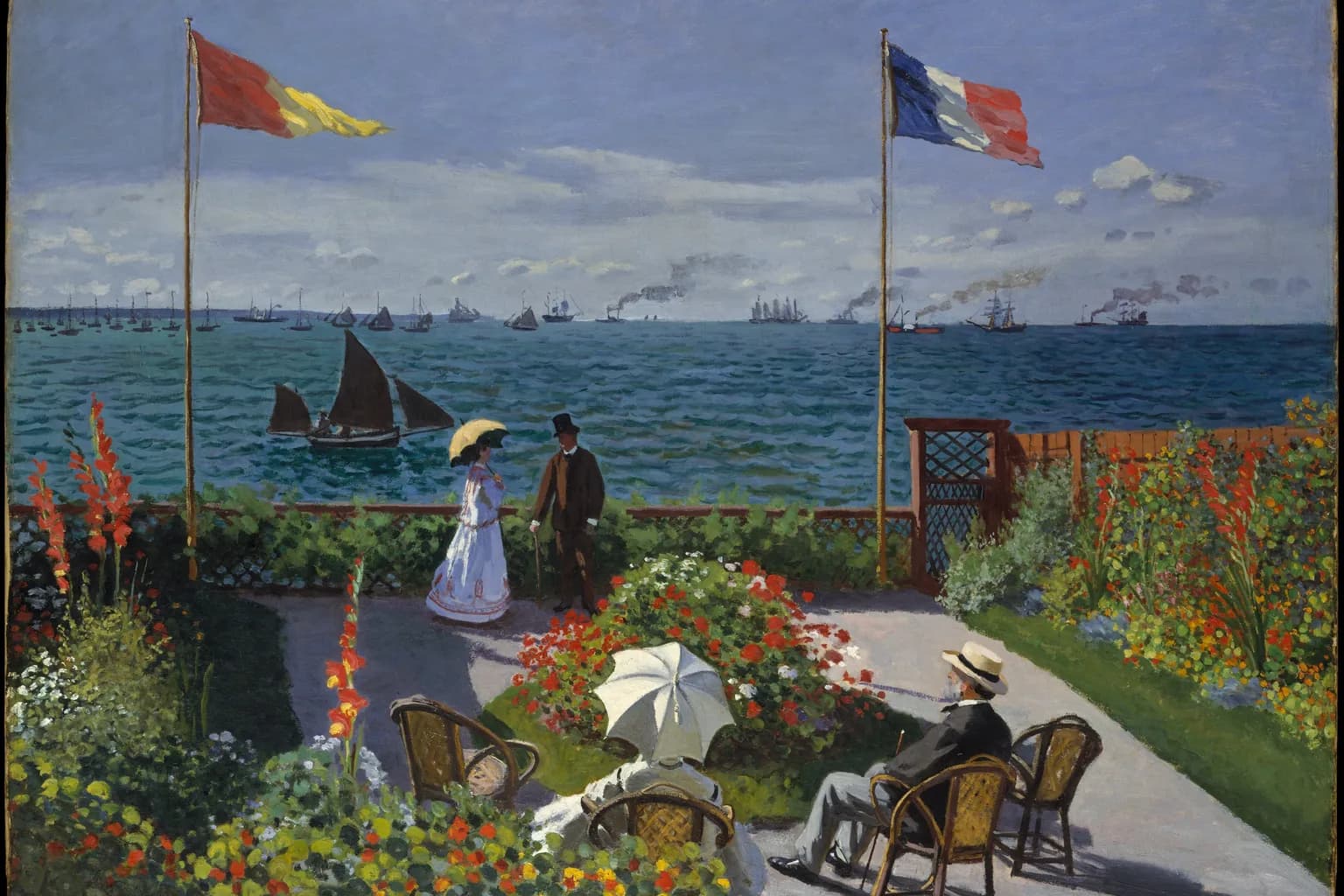
Animate an Illustration
Use an illustration as the starting point for a moving scene. Describe clouds drifting, flowers swaying, or a character making a small gesture. Begin with one main action so you can compare the result with your original idea and refine the next prompt.
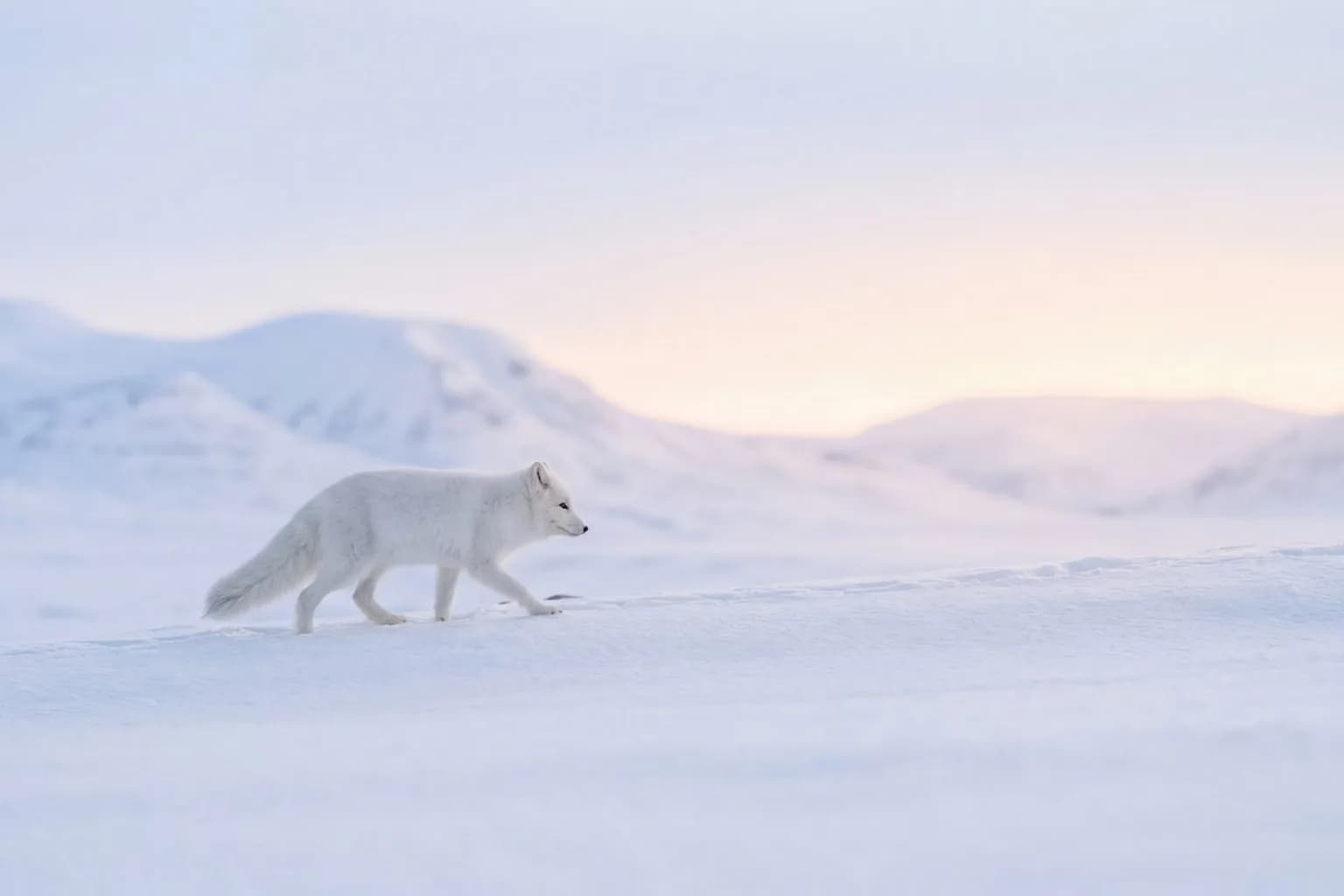
Bring a Travel Photo to Life
A landscape or city photo can become the basis of a travel clip. Describe movement in water, branches, or distant activity, then add a camera direction if it helps the scene. Keep the existing composition in mind when deciding what should move.
How to Make a Video from an Image for Free
1. Upload Your Starting Image
Choose a photo or illustration that clearly shows your subject. Use an image you have permission to use, and select a model that accepts image input. Check the upload controls for the formats and requirements available with your current selection.
2. Describe Subject and Camera Motion
Write what should happen in the scene. Name the subject, give it a specific action, and add camera movement or atmosphere when useful. Instead of only asking for a cinematic video, describe a slow push toward a cup while steam rises.
3. Check the Estimate and Generate
Review the settings offered by the selected model, the current credit estimate, and any access requirements. Generate when those choices fit your available credits. Watch the result, then change one instruction at a time if you want to try a different effect.
Image-to-Video Prompt Examples
These are illustrative prompt ideas, not verified generation results. Adapt each prompt to the image you upload and the options supported by your selected model.
Product Scene
The camera slowly moves closer to the bottle on the table. Soft light shifts across the surface while the background remains calm.
Illustrated Garden
The character stands in the garden as nearby flowers sway gently. The camera makes a slow, subtle push forward.
Coastal Landscape
Waves roll toward the shore and grasses move in the breeze. The camera slowly pans across the coastline in warm evening light.
Free Image-to-Video Generations, Credits, and Access
Start exploring image-to-video creation with the free credits available to you. The cost and available options depend on your selected model and settings; free access does not mean every model or configuration is included.
Signing in daily earns extra credits you can put toward more generations, and paid plans unlock additional models and higher limits. Selected models and settings can still require paid access — check the current estimate and access requirements in the generator before submitting.
Image to Video, Reference to Video, or Text to Video?
| Workflow | Starting point and purpose |
|---|---|
| Image to Video | Start with a picture you want to animate. Choose this workflow when the existing subject and composition are central to your idea. |
| Reference to Video | Use reference images to guide a new scene. Choose this workflow when a subject or visual style should inform a different action or setting. |
| Text to Video | Start with a written description. Choose this workflow when you have a scene in mind and do not need to begin from a particular image. |
Free Image-to-Video Generator FAQ
Is the image-to-video generator free?
You can begin with the free credits available to you. The estimate and access requirements depend on your selected model and settings, so check them in the generator before submitting. Some choices can require paid access.
Can I turn a photograph into a video?
Yes. Choose a model that supports image input, upload your photograph, and describe the movement you want. A clear subject and a specific motion prompt give the generator a more focused starting point.
What should I include in a motion prompt?
Describe the subject, its action, and any camera movement that matters to the scene. Mention atmosphere or lighting if useful. Start with a focused idea and revise the wording after reviewing the result.
Can I animate an illustration?
Yes. An illustration can be a starting image for a supporting model. Describe movement that fits the scene, such as drifting clouds or a small gesture, and review how the generated motion treats the drawing's details.
Will the video preserve every detail of my image?
Results vary with the source image, model, prompt, and settings. Check faces, text, product labels, and other details that matter to you. Adjust your image or prompt if you want to try again.
Sources and page information
For video prompts, describe the subject, action, setting, and camera movement. Google’s guide explains these elements; results depend on the model. Google Cloud video prompt guide